By Yarin Leibovich

Introduction
Not so long ago, TheHackerNews released an article regarding a new Trojan circulating in the Android world, that make use of AI as part of its malicious operations on the infected device. It was enough to light up my curiosity and make me jump right into analyzing it.
Feel free to read their article here.
IOC’s
| Type | IOC |
|---|---|
| Dropper | 468eed1131e4b562ae32ff2734d9feb37c9b8e2097df05431867279614c8502a |
| Second stage | db7a1c352c7d1ac75e0ba31b71cf4b0e3304a22b8d0d636fa80b5d5095be1e00package name : net.ustexas.ami |
| IPv4 | 54[.]67[.]2[.]84 |
| Domain | m-mgarg[.]com |
| Samples obtained via abuse.ch, credit to the user smica83 |
First stage - Dropper
This type of malware most likely comes from phishing campaigns. Although I could not find real cases of infected devices, it seems like the obtained version is a debug version / demo and not the ‘production’ malicious app. This hypothesis comes from the understanding that the author has left a lot of hardcoded notes and the in addition to lack of obfuscation.
At first I began investigating the malware from the Second stage payload, but decided I need to understand the complete chain that the malware executes. I wont go into detail on how the dropper seduces the user into clicking and installing the second stage, since the most interesting part is in the second stage payload.
In short, the dropper asks for user permission to install an additional package for an investment app. Afterwards it obtains the second stage payload from an external URL:

Once the installation is finished, the malware dropper verifies:
- Whether the app is installed correctly by checking its state via Boolean values
- Whether the VNC service is running properly.
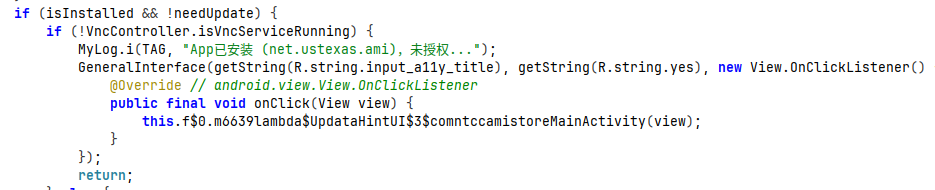
Following the listener onClick implementation revealed the jackpot, the MainService triggers:
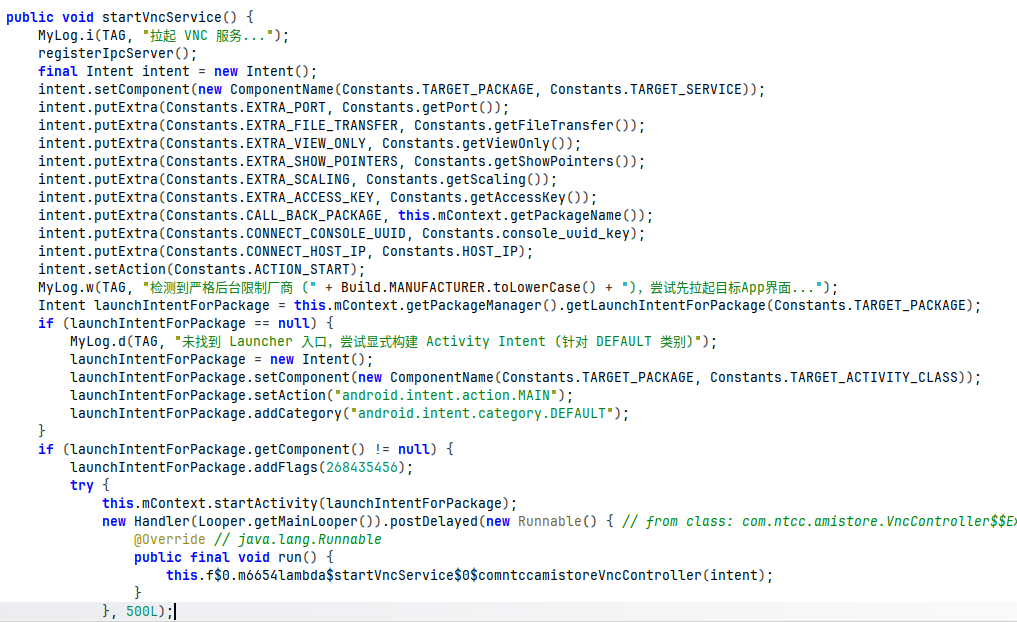
As seen in the image, the malware prepares an Intent containing all necessary initialization data such as host IP, ports, and access keys extracted from a Constants class.
Then, the second stage package is launched using launchIntentForPackage and a 0.5s delay before starting the VNC Service (either as a service or a foreground service if the necessary permissions are given):
ComponentName componentNameStartForegroundService = Constants.getUseForeground() ? this.mContext.startForegroundService(intent) : this.mContext.startService(intent);
On a side note
*Ill stop here for a second and admire the malware authors for doing this. They actually made my work easier by supplying an unobfuscated logging mechanism, for example:
when the broadcast receiver receives a StartAction from the MainService, the malware author logs the following:
收到 MainService 启动成功事件,自动链接接中继,上传应用列表
which translates to:
Received the MainService startup success event; automatically connecting to the relay and uploading the application list.
Thank you Ms/Mr Malware Author. ~Yarin
Second stage - MainActivity
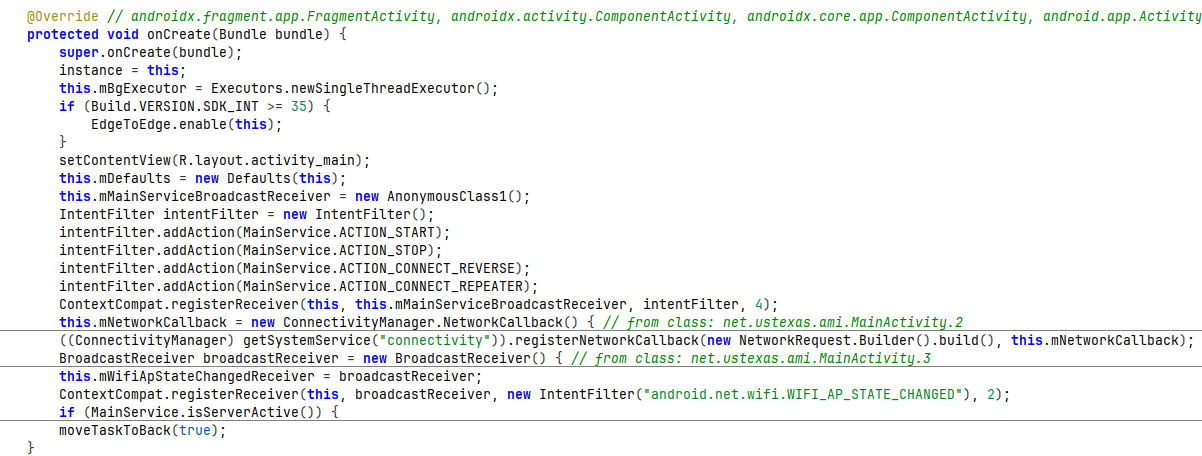
First, lets begin with the MainActivity (net.ustexas.ami.MainActivity) onCreate method.
Right at the start, a main broadcast receiver is registered which explains why there is a delay in the previous stage - to allow the BroadcastReceiver time to be registered.
A high level overview of the onCreate method reveals some significant steps the malware takes:
- MainService
BroadcastReceiveris registered with 4 intent filters. - A
ConnectivityManageris implemented. - A dedicated WIFI State
BroadcastReceiveris registered with its designated intent filter. - Audit logs are sent to the attacker server.
But Yarin, so far there is no AI involved. How so? Lets dive into the interesting part.
Second Stage - MainService
So far we have discussed the MainActivity. Lets analyze the MainService, which plays a crucial role in the malware operation.
If we take a look at the service lifecycle below, the first method called right after this service is instantiated is onCreate():
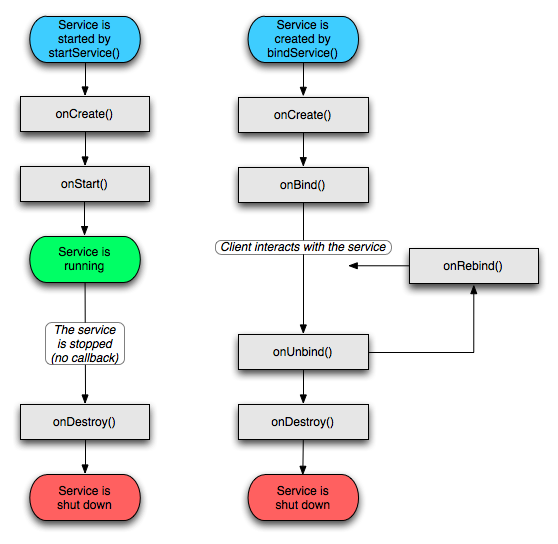 Analysis of the MainService
 onCreate() method reveals that the first step is to take a use of the Android WakeLock mechanisem.
What is the WakeLock mechanism in Android?
A WakeLock in Android is a feature that prevents the OS from entering a low-power state or pasing application processes. It ensures the phone’s CPU resources keeps running on selected apps, even if the screen is off.
This is how MainService registers a WakeLock:
        r3.mWakeLock = ((PowerManager) instance.getSystemService("power")).newWakeLock(805306374, "MainService:clientsConnected");
        ((ConnectivityManager) getSystemService("connectivity")).registerDefaultNetworkCallback(r3.mNetworkChangeListener);
        r3.mDefaults = new Defaults(this);
        String r02 = getFilesDir().getAbsolutePath() + File.separator + "novnc";
        Utils.deleteRecursively(r02);
        Utils.copyAssetsToDir(this, "novnc", r02);
        return;
Right after that, the malware checks if the user has granted the Accessibility permissions to the app. This is a crucial step.
If the permission is not granted, the malware would keep redirecting the user to the Accessibility settings screen until they accept. Once the permission is granted, it proceeds to establish a TCP connection back to the C2 host.
In parallel, inside MainActivity, something interesting is happening: If the user has approved the accessibility permission, it starts some sort of an automation:

Now we get to the real deal. The malware utilizes a very interesting persistence mechanism - It combines both Android Accessibility Services with LLM logic to achieve this.
Second stage - AI Usage
The goal The main goal is to lock the app in the recent apps with the “keep open” or “lock” buttons. This would “protect” the malware from background optimization and make sure that the malware would keep running at all cost - even after reboots.
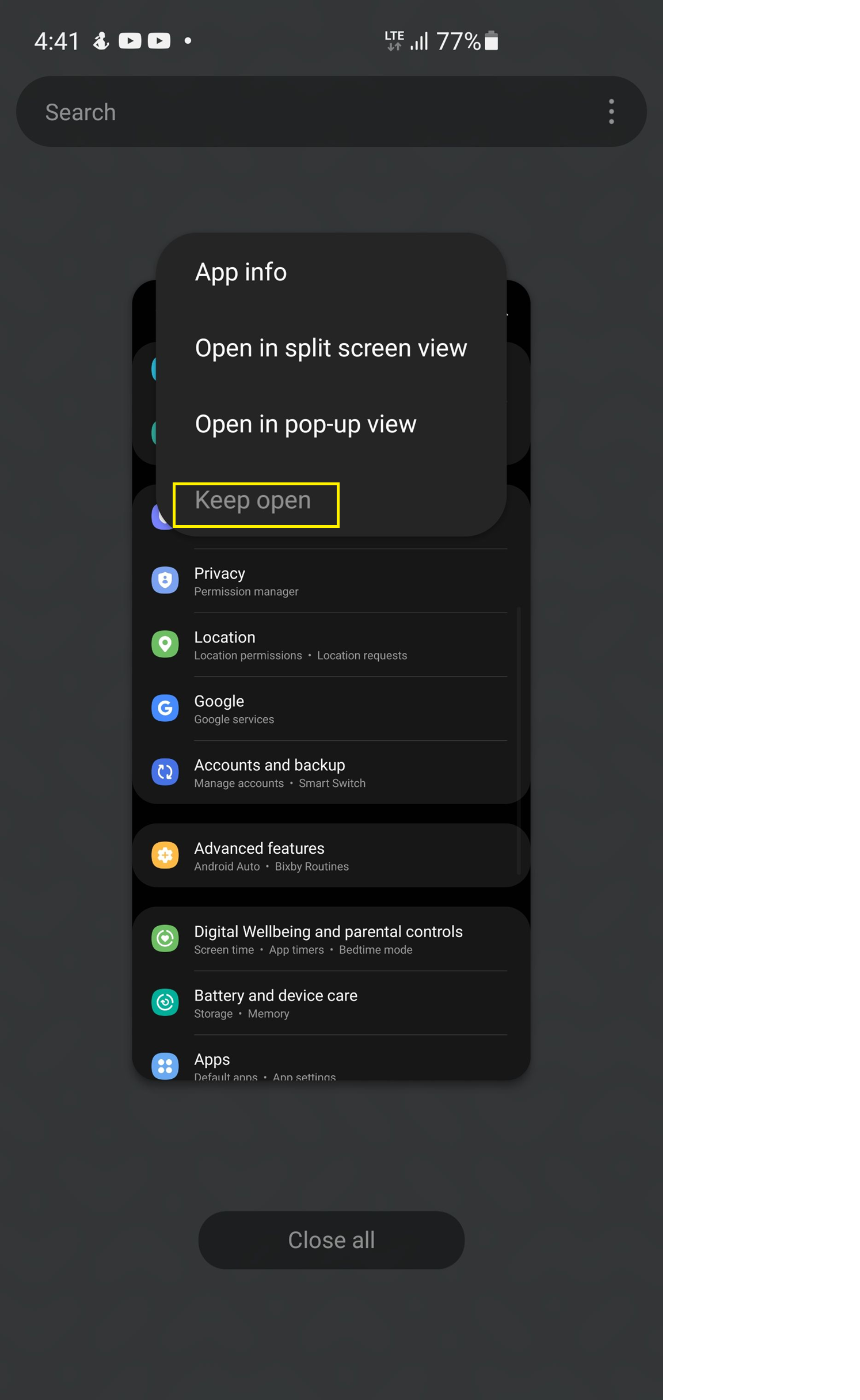
The challenge Each android distro has its own screen size, buttons text, UI components layout, making it almost impossible to hardcode this action. By leveraging the current device information and screen content via API calls, the malware uses the power of AI to determine the required actions dynamically.
The solution
- The malware collects device information, and using a harcoded preconfigured Gemini key, sends the following prompt to the Gemini 2.5 Flash model:
"Lock the current " + {Application name} + " app in the recent apps list. Device info: " + MainService.DeviceModelOS() - An Accessibility Service enables the malware to obtain an XML snapshot of the entire screen content. Then the following prompt is sent (Formatted Nicely):
You are an Android automation assistant. The user will give you the UI XML data of the current screen.
You need to analyze the XML and output operation instructions in JSON format to achieve the user's goal.

Nodes in the XML contain 'bounds' attributes in the format '[left,top][right,bottom]'.
You need to calculate the center coordinates to generate click instructions.

*** Core Judgment Rules ***
1. **Do NOT guess that the task is completed**. Only return 'COMPLETED' when you clearly see visual evidence of success in the current UI XML (e.g., text like 'Saved', 'Success' appears, switch status becomes checked="true", or the screen has navigated to the target state).
2. If you performed the last step but the current XML does not reflect the result yet, return 'IN_PROGRESS' with action 'NONE' (or wait) to check the new UI state in the next cycle.
3. If unsure, remain 'IN_PROGRESS' and attempt to verify.
4. If the current UI XML is empty, use 'RECENTS' to access the recent apps list.

You can use SWIPE to scroll/slide to find targets:
When action_type = "SWIPE", you must provide x1,y1,x2,y2,duration_ms.
e.g., Scroll UP: slide from bottom to top (y2 < y1).

Please strictly follow this JSON output format, do not output any Markdown tags or extra text:
{
  "status": "IN_PROGRESS" | "COMPLETED" | "IMPOSSIBLE",
  "reasoning": "Detailed explanation: what specific text or state I saw on the screen to judge the task is completed or needs next step",
  "action_type": "CLICK" | "LONG_CLICK" | "BACK" | "HOME" | "RECENTS" | "SWIPE" | "NONE",
  "x": 500,
  "y": 1000,
  "x1": 500,
  "y1": 1600,
  "x2": 500,
  "y2": 400,
  "duration_ms": 350
}

User Goal: " + r10 + "

Current UI XML:
" + {Current Screen XML file};
- The prompt is sent using the Gemini hardcoded API key, and the returned JSON response is parsed.
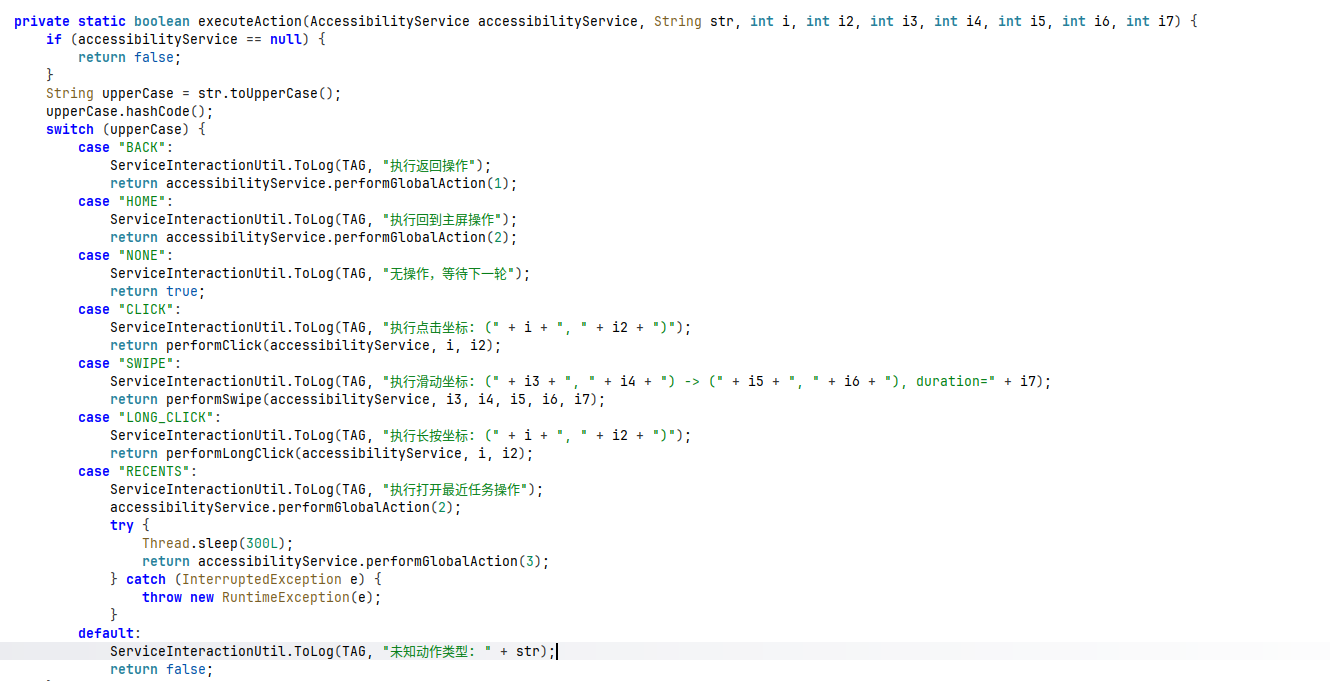
- Using the Accessibility Services, the malware mimics user gestures based on the AI responses:
- After the malware finish executing the input, a new XML snapshot of the screen is taken and sent back to the Gemini with the following prompt:
The previous action has been executed. This is the new UI XML, please determine if the task is complete or provide the next instruction:\n" + {NEW SCREEN XML};
- The App is locked in the recent apps.
Summary
To sum it up, this malware was quite fun to analyze - I had a great time. Kudos to the malware author for the Chinese log teasers - they proven useful at times.
This has been the first malware I have observed using an AI driven mechanism. Although AI is currently only levereged for persistence, I am really keen to see how malware authors will integrate AI into their crafted payloads in the future.